
Home / IT & Telecom / Now Share Your WhatsApp Username Instead of Phone Number | New WhatsApp Update

Now Share Your WhatsApp Username Instead of Phone Number | New WhatsApp Update

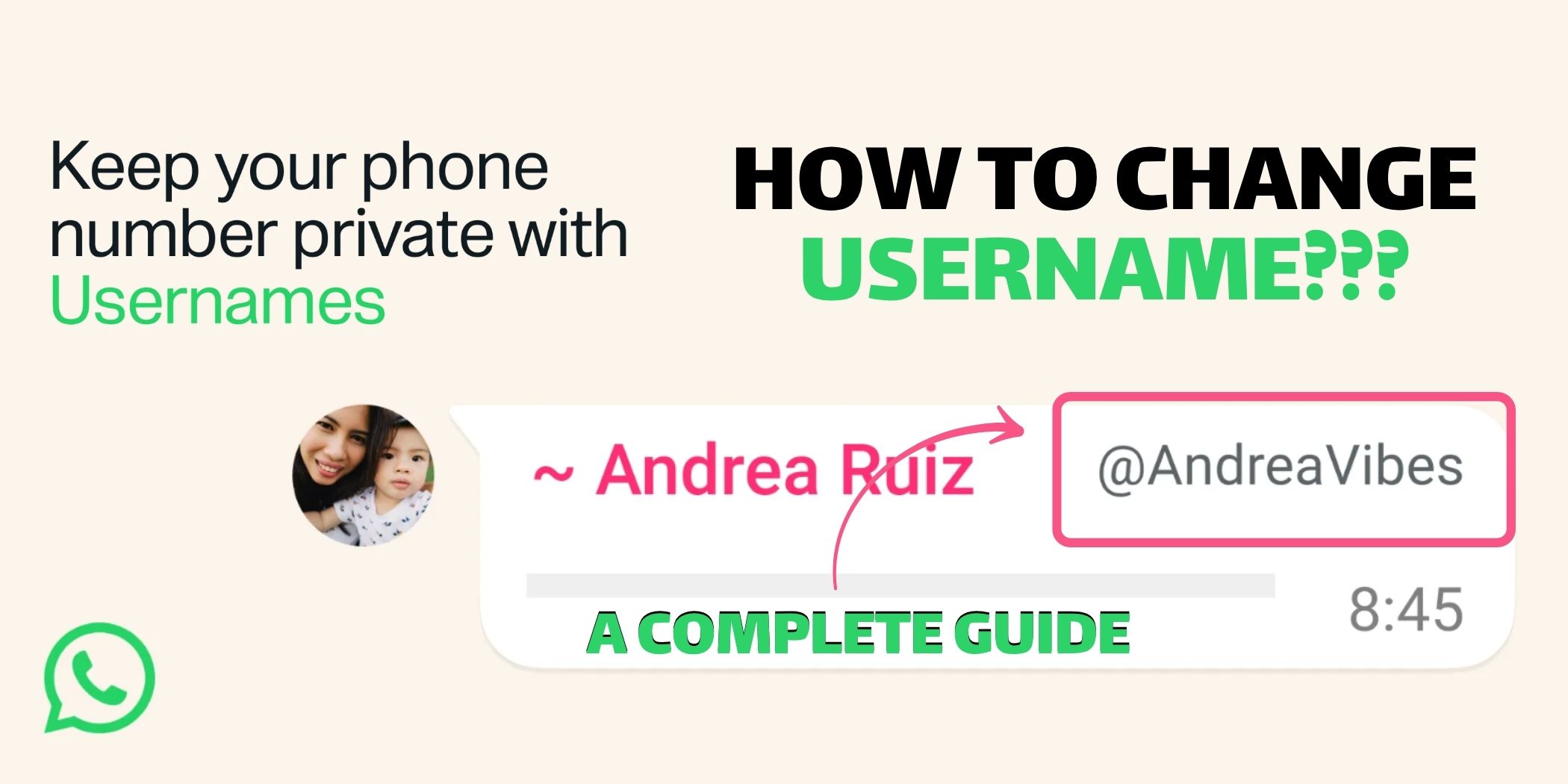
Featuring WhatsApp new Update ”How to Change Username?? A Complete Guide" with the subtitle "Keep your phone number private with Usernames." Features a WhatsApp chat bubble mockup showing a profile photo of a woman with a child, the name "Andrea Ruiz," and a highlighted username field reading "@AndreaVibes" with a pink arrow pointing to it. A WhatsApp logo appears in the bottom left corner.

“Your WhatsApp username is not your identity its your end-to-end security. Instead of sharing your phone number for formal and business contacts, you can now keep your personal number private and share your username instead.”

On 29 June, 2026 Meta announced a major privacy update. Now you can choose a special username for your WhatsApp account. Also you can sync username from Facebook and Instagram if you wish.

According to WhatsApp’s faq: If you don’t want to share your number with someone in order to chat on WhatsApp, you can give username instead.

Can You Change and Delete your Username?

Yes you can change and delete your username at any time. Because this is optional, you can use your WhatsApp without choosing a username, but keep in mind that once you change or delete a username it becomes available for others to claim.

if the username you want is already taken, you will need to choose a different one. Because certain usernames are held for business, governments, or public figures and can not be claimed by others.

How can you set a WhatsApp username?

How you can set a WhatsApp username on Android:
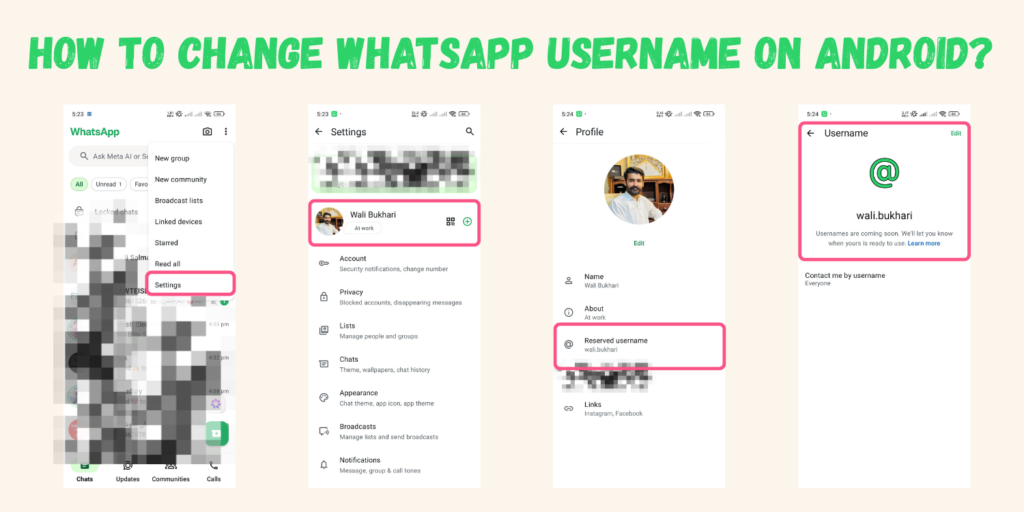
Step-by-step visual guide titled "How to Change WhatsApp Username on Android" showing 4 screenshots: (1) WhatsApp home screen with the three-dot menu open and "Settings" highlighted in a pink box, (2) WhatsApp Settings screen with the profile "Wali Bukhari — At work" highlighted in a pink box, (3) WhatsApp Profile screen showing "Reserved username: wali.bukhari" highlighted in a pink box, (4) WhatsApp Username screen displaying the @username "wali.bukhari" with a message "Usernames are coming soon. We'll let you know when yours is ready to use." All screenshots are from an Android device.
  1. Open your WhatsApp and click on three dots, then click on settings.
  2. Click on your profile picture then scroll down, you will see the username option.
  3. Click on username option and it will take you on the username reservation page.
  4. Select your unique username and reserve it.

How you change WhatsApp username on IOS:
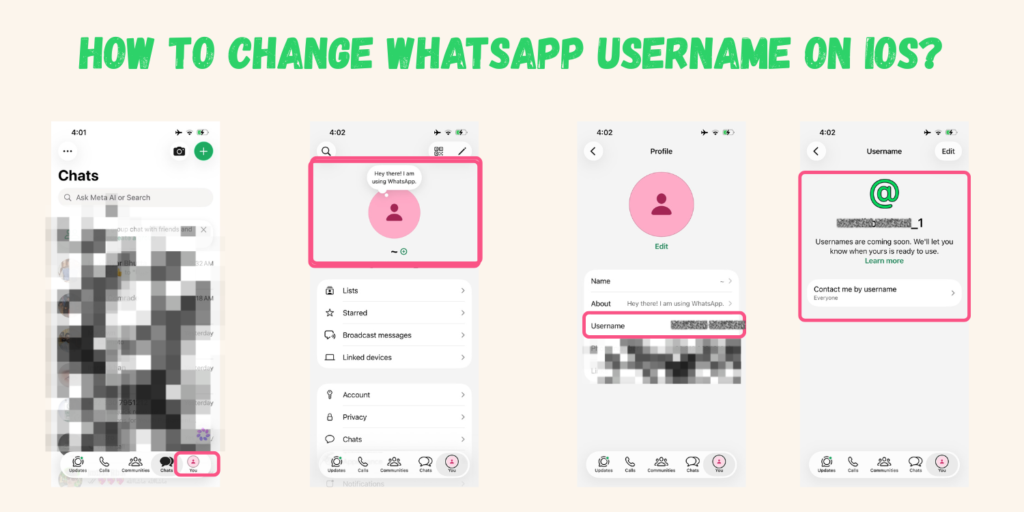
A screenshot guide showing how to change WhatsApp username on iOS. Step 1: WhatsApp Chats screen with the "You" tab highlighted in pink at the bottom navigation bar. Step 2: Profile settings screen showing the user avatar and status "Hey there! I am using WhatsApp" highlighted in a pink box, with menu options including Lists, Starred, Broadcast messages, Linked devices, Account, Privacy, and Chats. Step 3: Profile page showing Name, About, and a "Username" field highlighted in a pink box. Step 4: Username screen displaying the @ icon with a blurred username and a message "Usernames are coming soon. We'll let you know when yours is ready to use." with "Contact me by username" set to Everyone all highlighted in a pink box. All screenshots are from an iOS device.
  1. Open WhatsApp and you will see the profile picture in the lower right corner, just click on the profile.
  2. Click on the profile picture again and it will take to you on the profile settings.
  3. You can see the username option at 3rd row, now click on the username and select your username.
  4. Reserve username before it will take someone.

Tagged:

Leave a Reply

Your email address will not be published. Required fields are marked *